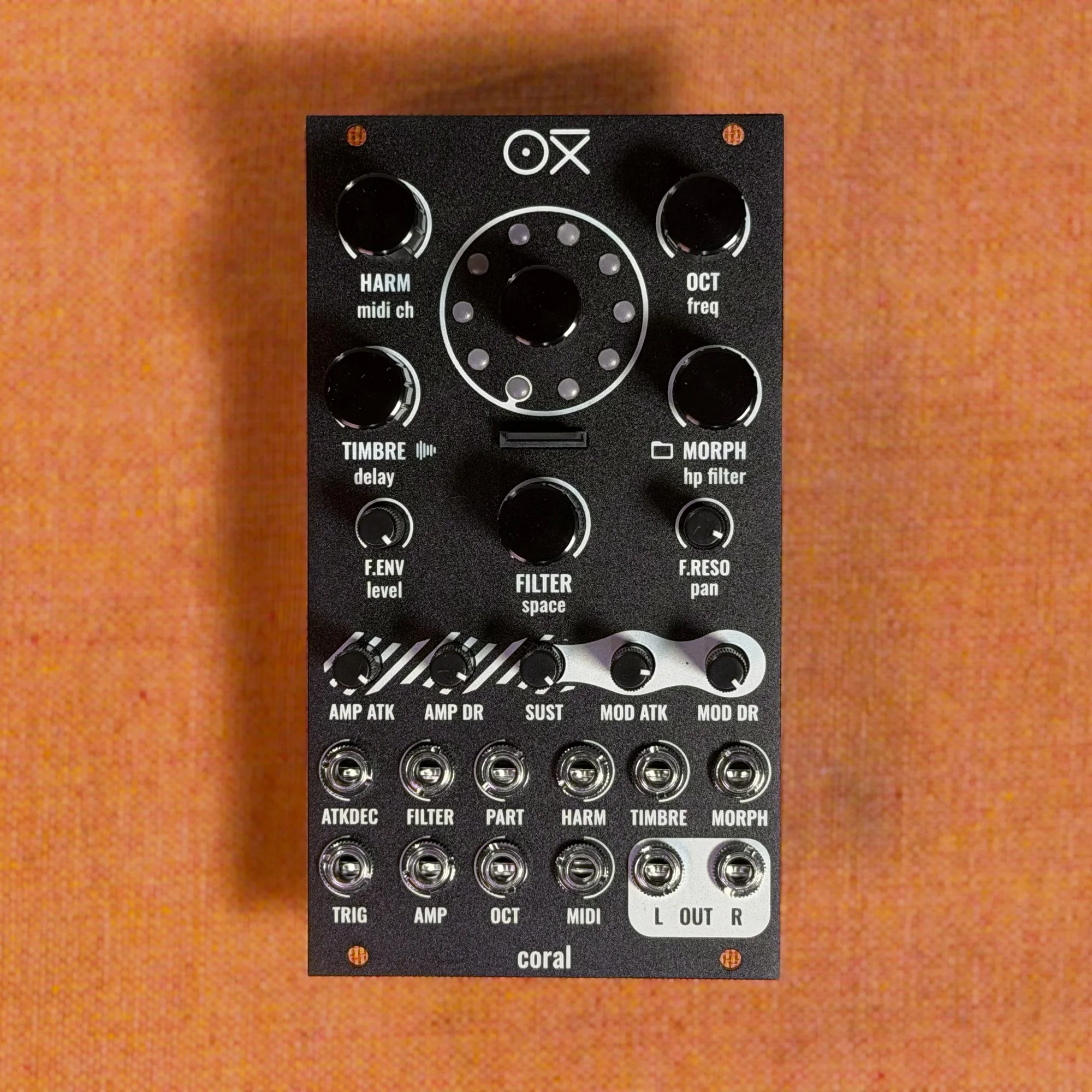
Welcome to EP.4 of the OXI Coral guide series. This time, we'll cover how to configure MIDI channels.
By default, Coral operates as a polyphonic sound source on MIDI channel 1, but you can also change the channel for all voices at once, or assign different channels per voice. By applying this, you can play multiple parts — bass, lead, chords, and more — simultaneously from a single module.
Takazudo Modular publishes manuals and related documents with Japanese translations. See the links below.
- Default MIDI Channel Configuration
- How to Change the MIDI Channel
- Per-Voice MIDI Channel Configuration
- Practical Applications
Default MIDI Channel Configuration
Right after powering on, all 8 of Coral's voices are assigned to MIDI channel 1. In this state, since every voice belongs to the same channel, Coral receives MIDI note data from channel 1 polyphonically.

How to Change the MIDI Channel
To change the MIDI channel for all voices at once, hold the Color button and turn the Harm/MIDI knob. While operating, the LED ring displays the currently selected MIDI channel in real time. Since the knob position carries over from its previous value, you may need to turn it a bit before the channel actually changes.

The moment you release the Color button, the new MIDI channel is applied to all voices. Below is the LED ring display after changing to MIDI channel 2.
Per-Voice MIDI Channel Configuration
Each of Coral's 8 voices can have its own independent MIDI channel. Voices assigned to the same MIDI channel are automatically grouped into a single part. For example, if you assign voice 1 to channel 1 (bassline), voice 2 to channel 2 (lead), and voices 3–8 to channel 3 (chords or pads), Coral functions as a multitimbral sound source with three parts.
Procedure
Here's how to set the MIDI channel for each voice:
Hold the Color button (encoder) down and turn the encoder to select a voice. The selected voice is shown on the LED ring in a bluish color (blue)
While still holding the Color button, turn the Harm/MIDI knob to select the desired MIDI channel
Release the Color button, and the selected MIDI channel is assigned to that voice
The example below shows the procedure for assigning voice 1 to MIDI channel 1. When voice 1 is selected, LED number 1 on the ring lights up blue.
From there, turn the Harm/MIDI knob to display MIDI channel 1, then release the Color button, and voice 1 is assigned to MIDI channel 1. The remaining voices 2–8 stay on MIDI channel 2, giving you two parts.
Practical Applications
Using MIDI channel part splitting dramatically increases the flexibility of using Coral in combination with sequencers (OXI One, OXI Split, etc.).
Bass + poly chords: Split voice 1 as channel 1 (monophonic bass) and voices 2–8 as channel 2 (7-voice poly chords)
Multi-timbral drums: Assign each voice to a separate MIDI channel, so each channel of a drum sequencer triggers a different voice (engine)
Layer switching: Use Part CV to switch in real time which part is affected by the CV input
Also, to reset all voices back to MIDI channel 1 and return to the default state, hold the encoder down for more than 5 seconds on the main view. When the LED ring displays a red animation, the reset is complete.
That's it for EP.4. MIDI channel configuration is fundamental for using Coral as a multitimbral sound source. By switching between global changes and per-voice settings as needed, you can independently control multiple parts from a single Coral.
OXI Coral Product Details
You can find the product details for OXI Coral below.
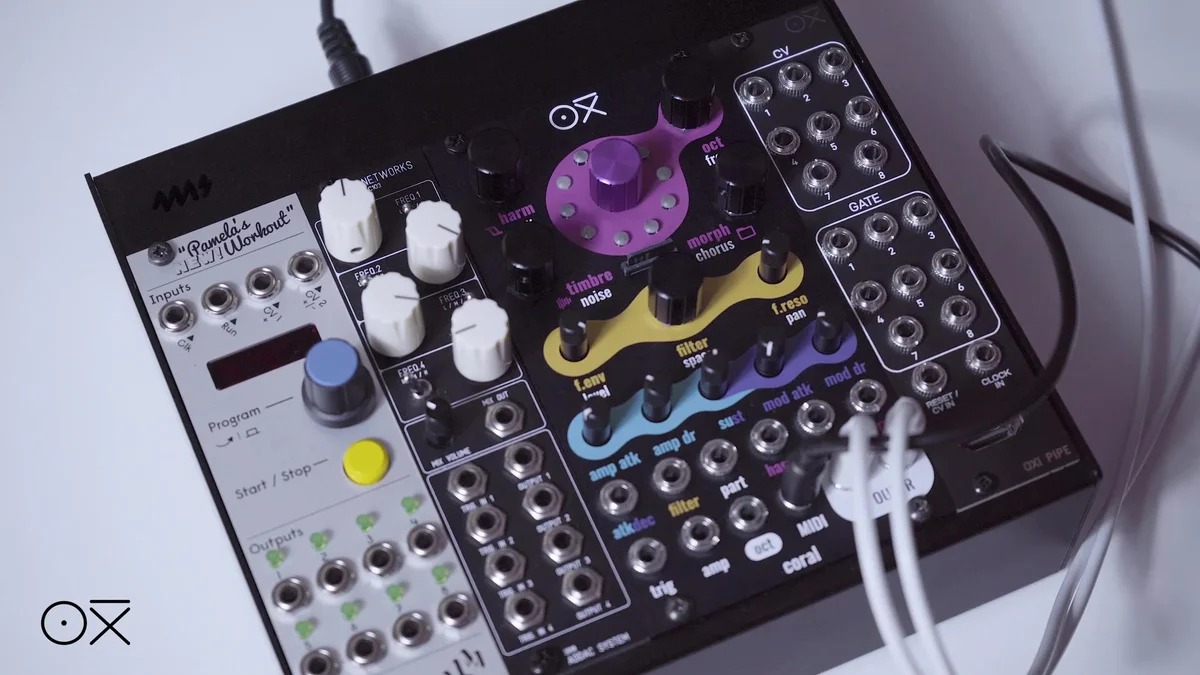
8-voice multitimbral polysynth module in 14HP. Combines synth, sampler, and drum functions with a low-pass filter, chorus and reverb effects, custom wavetables, and multiple firmware options.
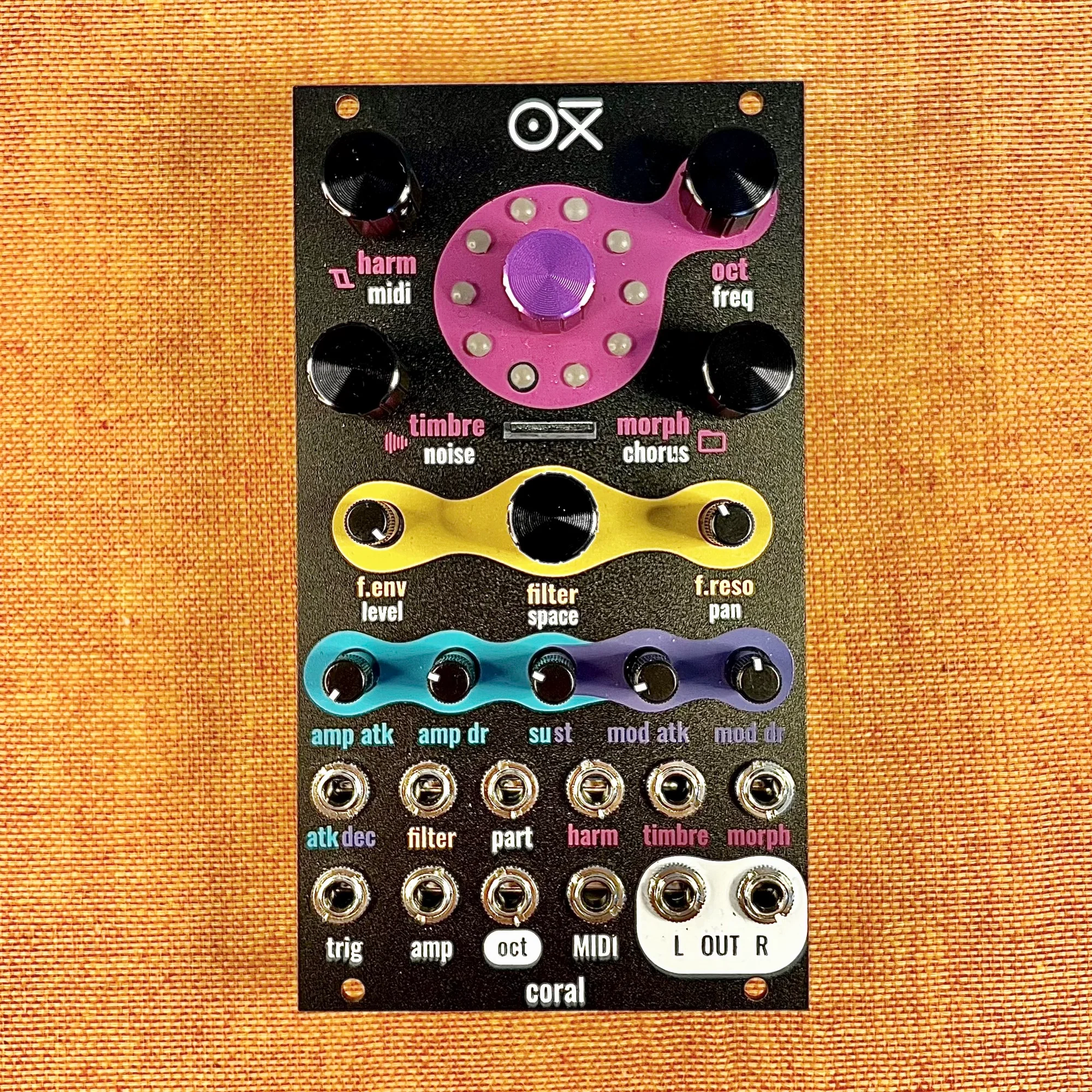
8-voice multitimbral polysynth module in 14HP. Combines synth, sampler, and drum functions with a low-pass filter, chorus and reverb effects, custom wavetables, and multiple firmware options. Black edition.